Install CentOS 8 (and 2026 RHEL Alternatives: Rocky Linux 9 & AlmaLinux 9)
Step-by-step visual guide to installing CentOS 8 on a virtual machine, modernized for 2026 with AlmaLinux 9, Rocky Linux 9, and automated Kickstart deployments.
Original Archive (April 2020) + 2026 AI Modernization: This article preserves the original visual walkthrough from How To Tech Blog alongside an updated 2026 guide for modern Enterprise Linux distributions following CentOS 8 reaching End-of-Life (EOL).
Original Guide (April 2020): Installing CentOS 8
Download the latest CentOS 8 ISO from: https://www.centos.org/download/
Define a VM and boot to the installer.
The first install screen you are presented with is the language selection screen.
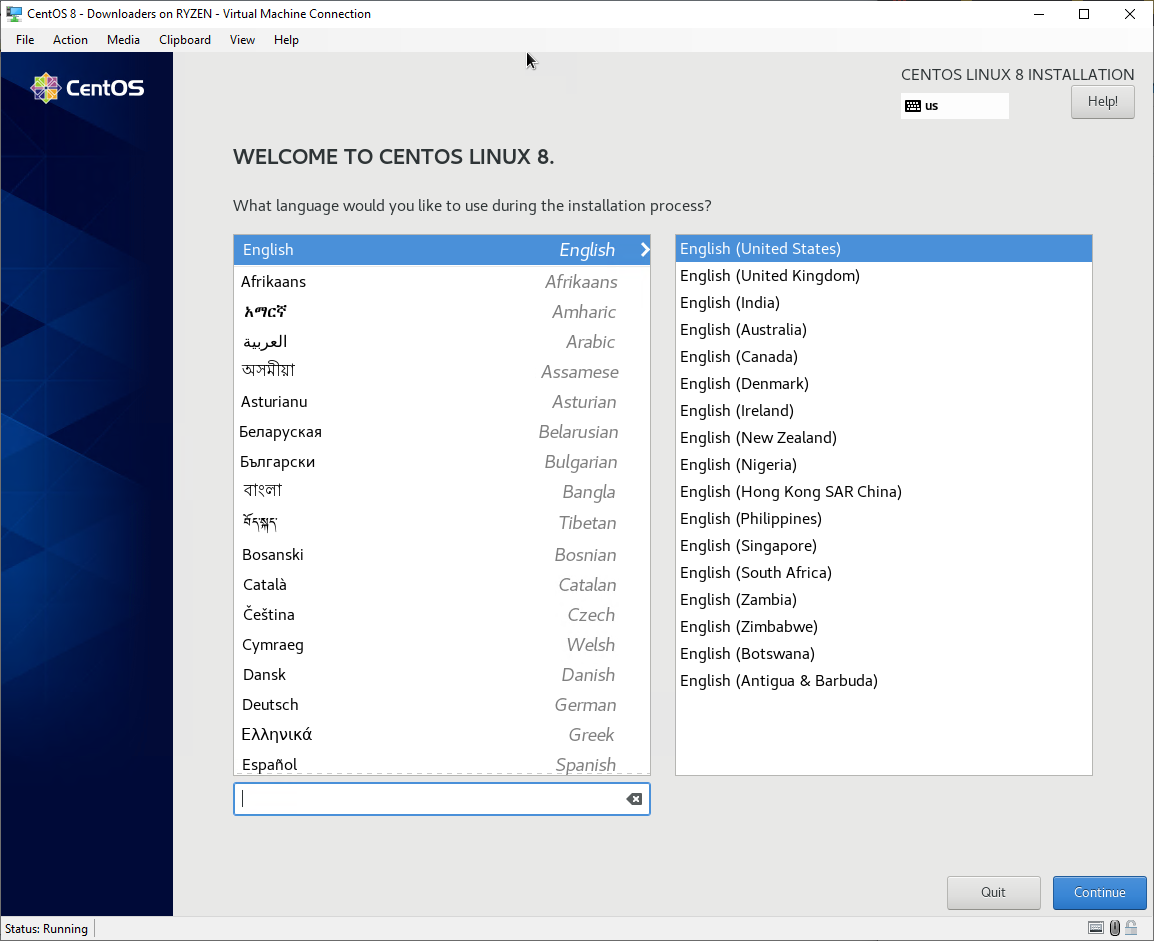 CentOS 8 installation – language selection screen
After selecting your language you are presented with the Installation Summary screen. At the bare minimum you will need to specify the installation destination in order to proceed.
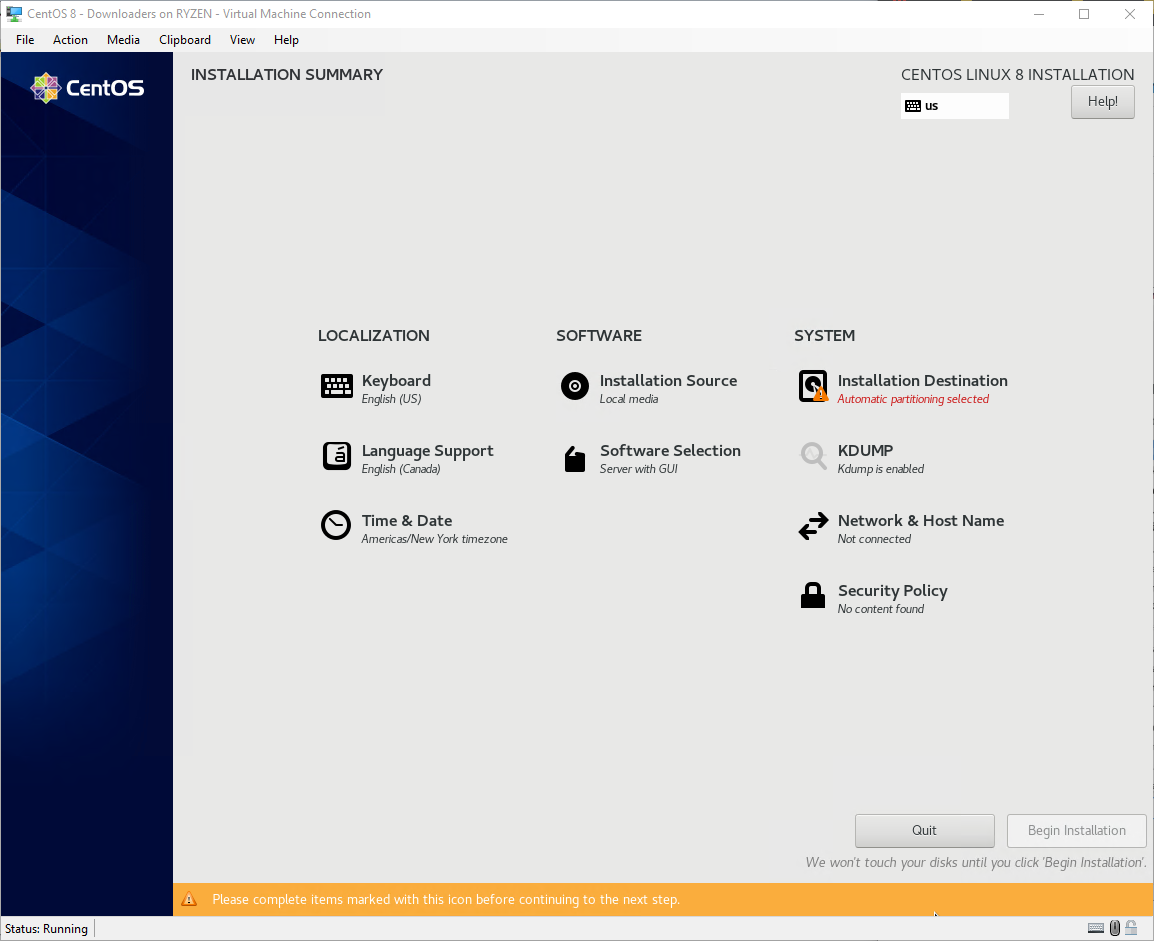 CentOS 8 installation – installation summary screen
Click on Installation Destination:
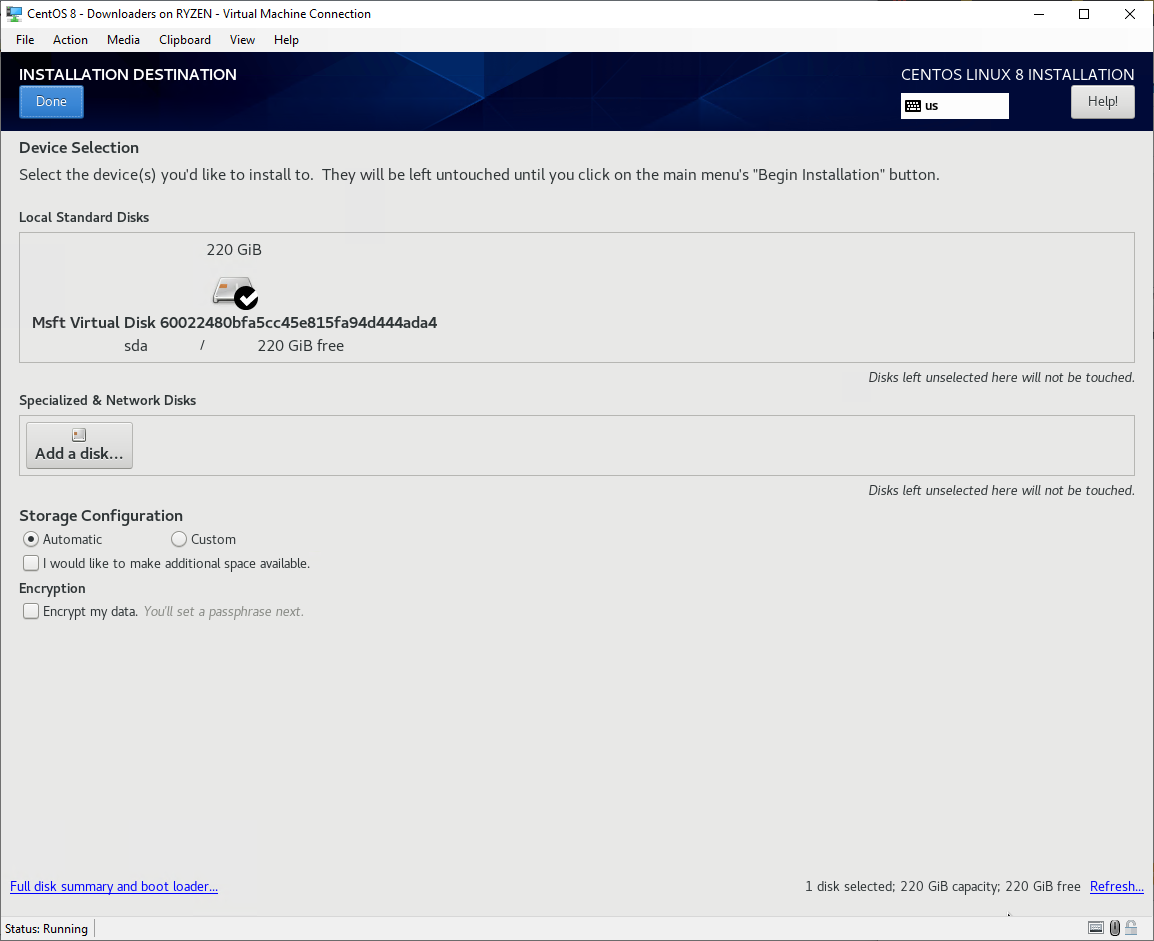 CentOS 8 installation – installation destination screen
Keep defaults and click Done (unless you want to manually create partitions or enable encryption).
Optional step – Enable Ethernet adapter and set hostname:
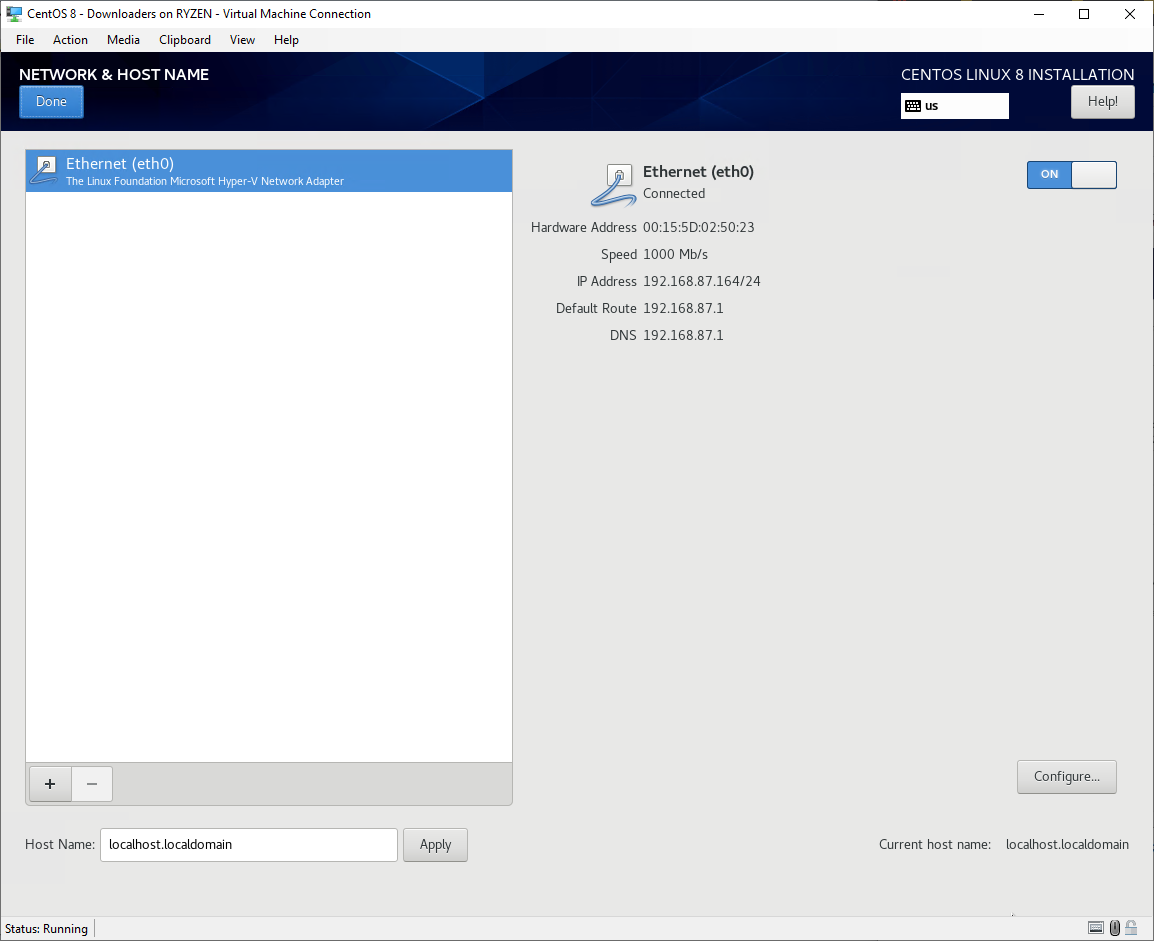 CentOS 8 installation – Network & Hostname screen
Optional step – Select base environment and optional software to install:
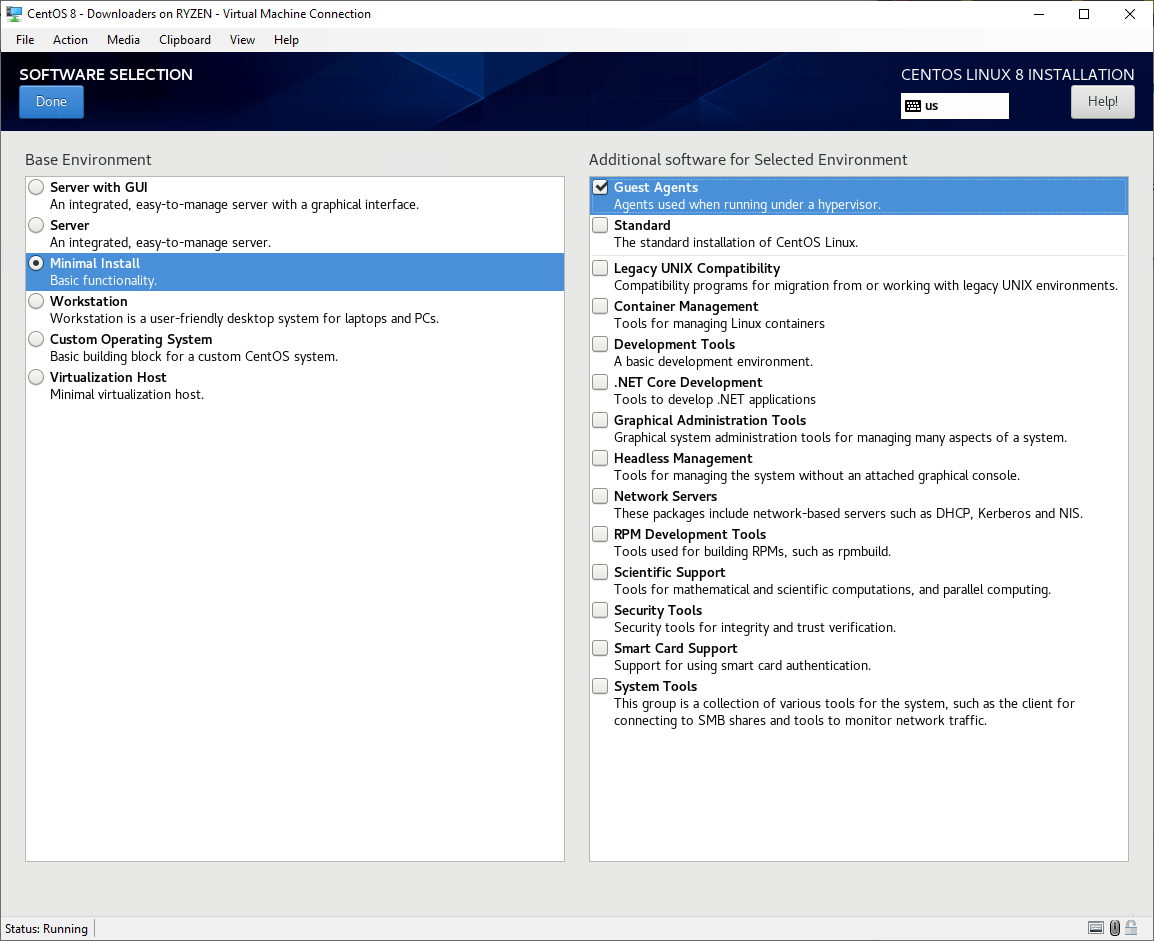 CentOS 8 installation – Software Selection screen
Once back on the installation summary screen, click the Begin Installation button.
The installation will begin and you are shown the following screen while the install takes place in the background:
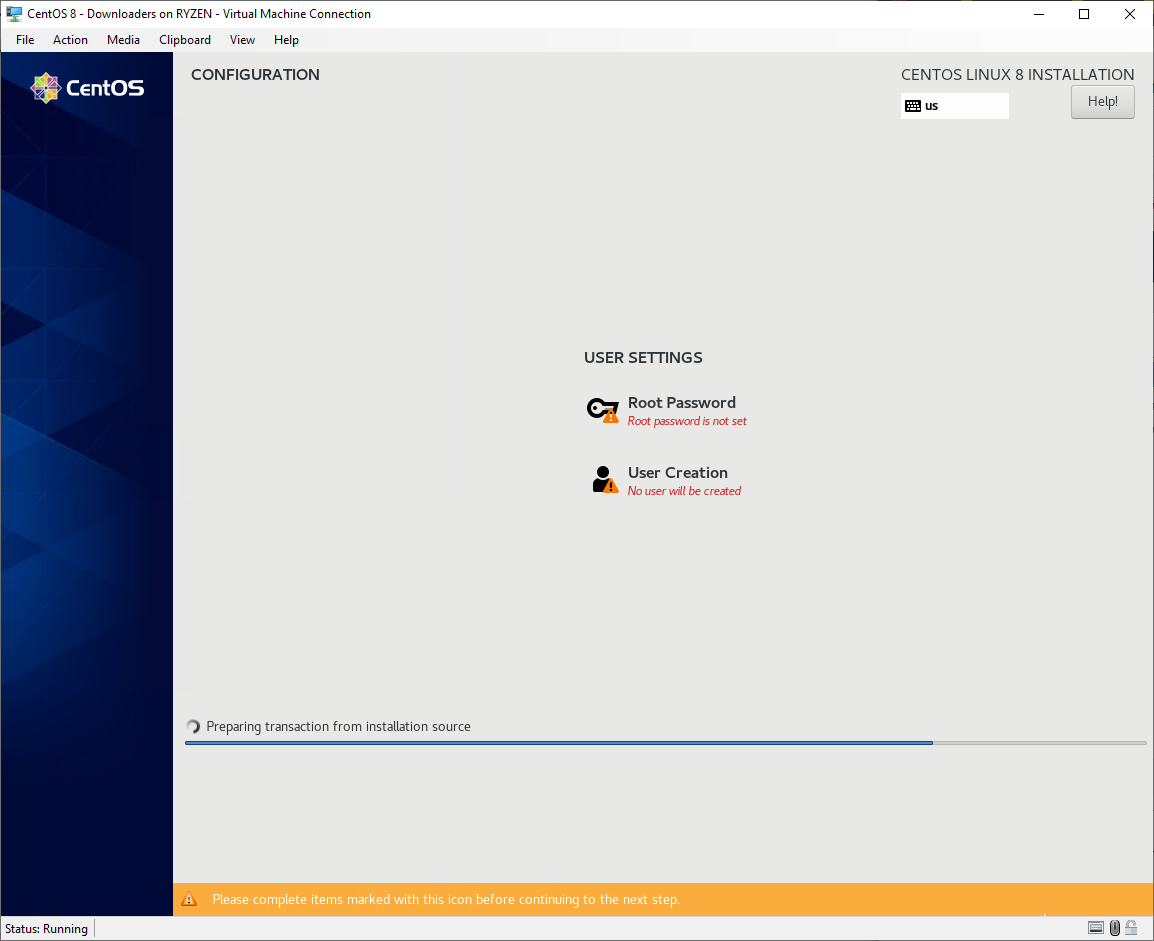 CentOS 8 installation – Configuration screen
Set Root password and create a new user if you wish:
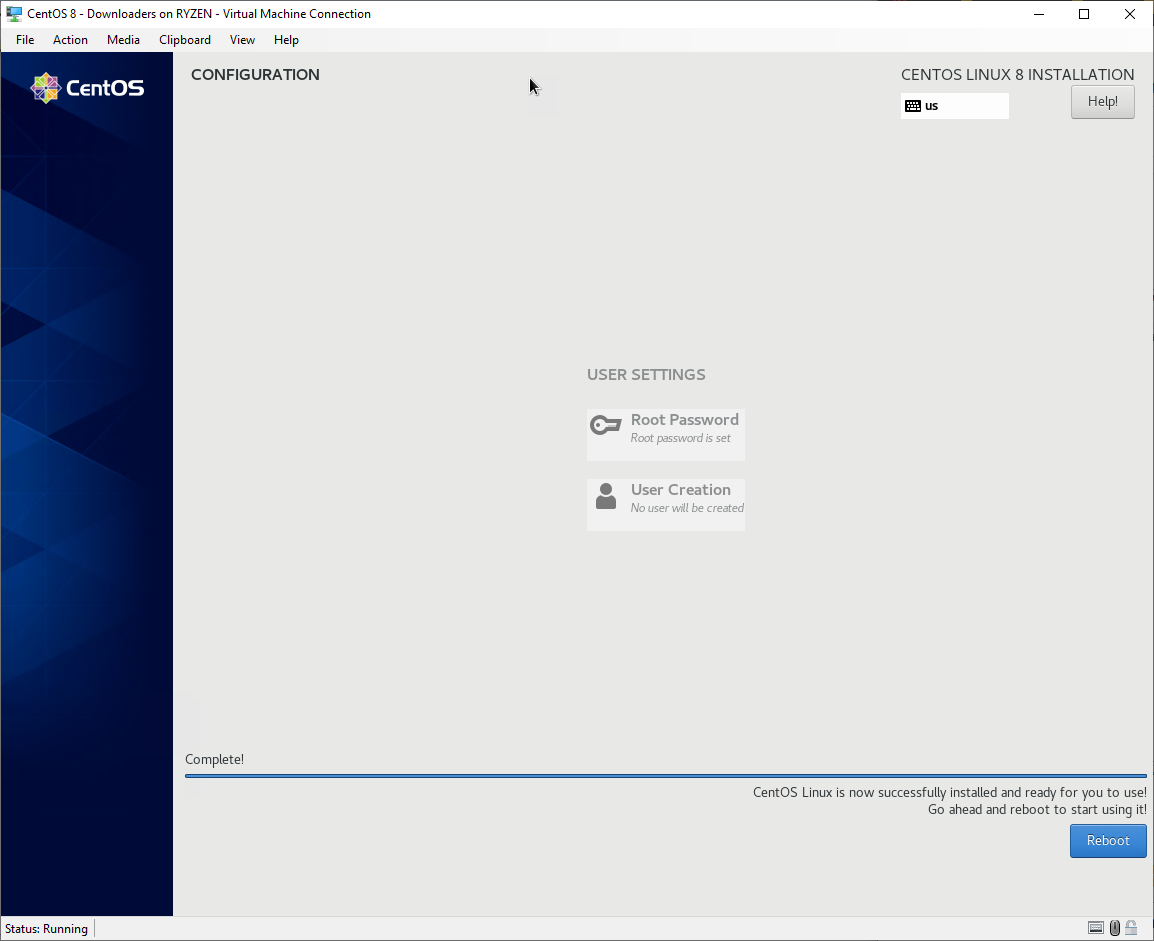
When the installation is complete the reboot button will appear – click Reboot. That’s it!
Post installation, login and run the yum update -y command to perform package updates.
2026 Modernization & Best Practices
1. CentOS Linux 8 End-of-Life & Modern Replacements
CentOS Linux 8 reached End-of-Life on December 31, 2021, and CentOS Linux 7 reached EOL on June 30, 2024. If you are spinning up an Enterprise Linux server today, you have three primary choices that use the exact same Anaconda GUI installer shown in the screenshots above:
| Distribution | Relationship to RHEL | Best Use Case |
|---|---|---|
| Rocky Linux 9 / 10 | 1:1 binary-compatible downstream rebuild of RHEL | Production servers, enterprise workloads |
| AlmaLinux 9 / 10 | ABI-compatible with RHEL (backed by CloudLinux) | Production servers, cloud & container hosts |
| CentOS Stream 9 / 10 | Upstream continuous-delivery branch for RHEL | Dev/test environments, tracking upcoming RHEL changes |
2. Fixing Mirrorlist Errors on Legacy CentOS 8 VMs
If you still maintain an archived CentOS 8 VM and yum update -y fails with Error: Failed to download metadata for repo 'appstream', you must point your repositories to vault.centos.org:
sudo sed -i 's/mirrorlist/#mirrorlist/g' /etc/yum.repos.d/CentOS-*
sudo sed -i 's|#baseurl=http://mirror.centos.org|baseurl=http://vault.centos.org|g' /etc/yum.repos.d/CentOS-*
sudo dnf update -y
3. Modern Package Management (dnf vs yum)
While yum remains a symlink for backward compatibility, dnf is the standard package manager in EL8, EL9, and EL10:
# Update all packages
sudo dnf upgrade --refresh -y

# Enable automatic security updates
sudo dnf install -y dnf-automatic
sudo systemctl enable --now dnf-automatic-install.timer