How to Import Ed25519 Keys for Use in PuTTY on Windows (Plus Native Windows OpenSSH)
Step-by-step tutorial on converting OpenSSH Ed25519 private keys to PuTTY .ppk format using PuTTYgen, plus how to use native OpenSSH in Windows 11.
Original Archive (November 2019) + 2026 AI Modernization: Preserves the original PuTTYgen
.ppkkey conversion walkthrough and adds modern native Windows OpenSSH and hardware-backeded25519-skworkflows.
Original Guide (November 2019): Importing Ed25519 Keys into PuTTY
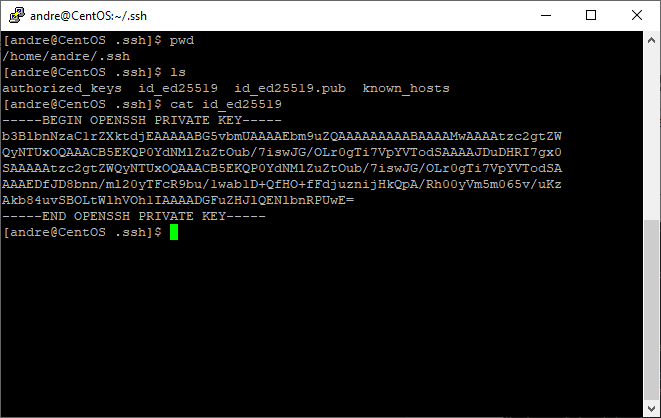
Go to your SSH key directory and print the contents of the private key file (id_ed25519 in my case):
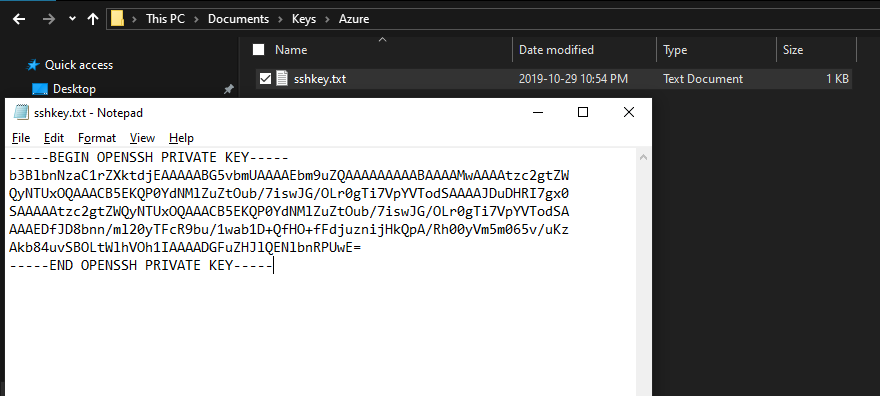
Create a new text file and paste the contents of your private key file inside and save:
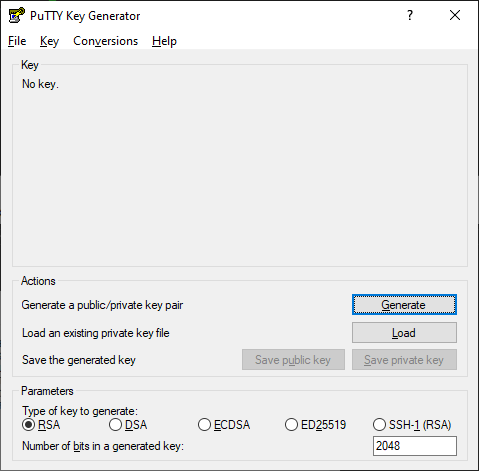
Open PuTTY Key Generator (PuTTYgen):
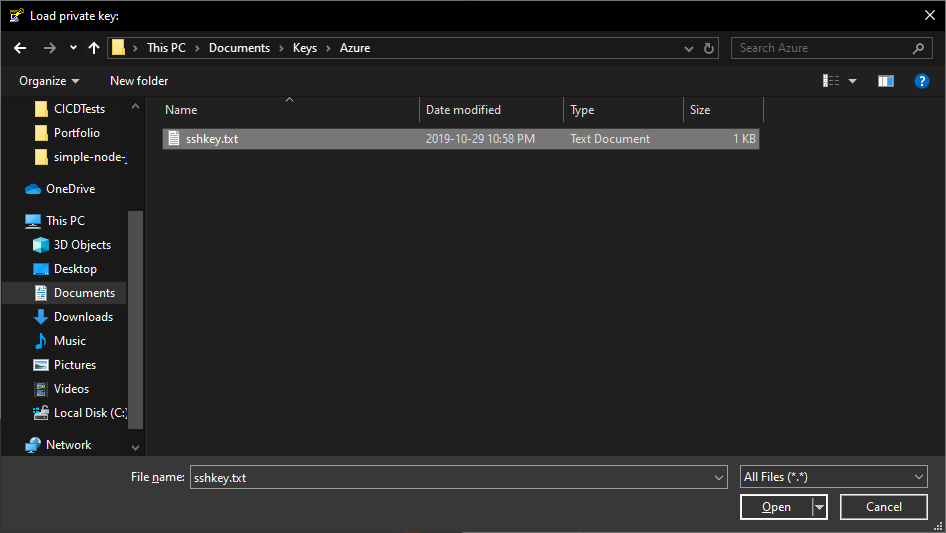
- Click File → Load private key
- Select All Files (
*.*) from file extensions - Open the text file containing your key
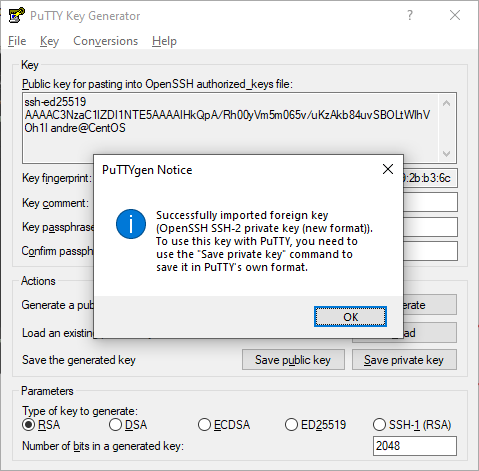
The key is imported now:
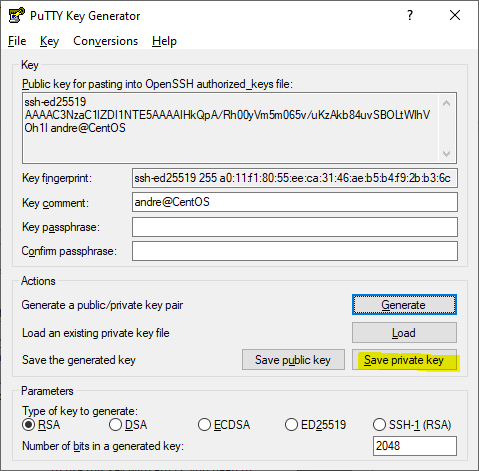
Now, you can save your private key in PuTTY’s .ppk format. Click on Save private key:
2026 Modernization & Best Practices
1. Use Native OpenSSH in Windows 10/11 & Windows Terminal (No .ppk Conversion Needed!)
Modern Windows 10, Windows 11, and Windows Server 2019–2025 ship with a native OpenSSH Client pre-installed. You can use standard id_ed25519 keys directly from Windows Terminal or PowerShell without converting them to .ppk:
# 1. Place your key in your Windows user profile .ssh folder:
# C:\Users\<YourUsername>\.ssh\id_ed25519

# 2. Enable the native Windows OpenSSH Authentication Agent service
Get-Service ssh-agent | Set-Service -StartupType Automatic
Start-Service ssh-agent

# 3. Add your Ed25519 key to the Windows SSH Agent
ssh-add "$env:USERPROFILE\.ssh\id_ed25519"

# 4. Connect directly from PowerShell / Windows Terminal!
ssh andre@192.168.1.50
2. Security Note if You Still Use PuTTY
- Delete Temporary Key Copies: If you copy a private key across machines to import into PuTTYgen, ensure you securely delete the intermediate
.txtfile afterward so an unencrypted copy isn’t left on disk or indexed by cloud sync tools. - Use PPK v3: Always use PuTTY 0.75+ (latest in 2026 is 0.81+), which uses the PPK v3 file format with Argon2 key derivation to protect passphrases against brute-force attacks.