How to Generate and Install Ed25519 SSH Keys on Linux (with 2026 FIDO2 Hardware Key Guide)
Learn how to generate Ed25519 SSH key pairs and deploy them to Linux servers using ssh-copy-id, plus modern FIDO2/YubiKey (ed25519-sk) and sshd hardening.
Original Archive (November 2019) + 2026 AI Modernization: Preserves the original walkthrough for
ssh-keygen -t ed25519andssh-copy-id, expanded with hardware security keys (ed25519-sk) and SSH server hardening.
Original Guide (November 2019): Generating & Installing Ed25519 Keys
The following command generates a public and private Ed25519 key pair:
ssh-keygen -t ed25519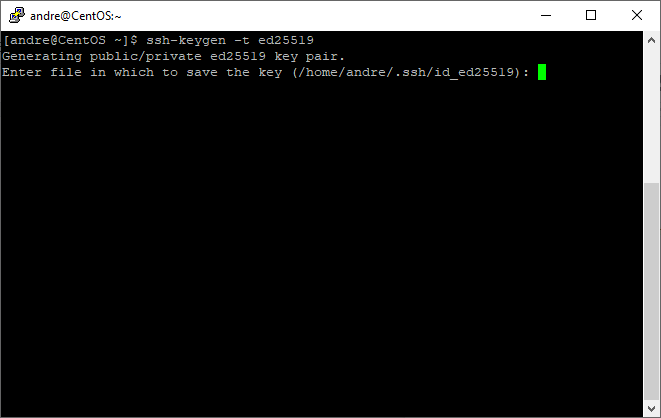
Enter a passphrase to protect the key if you wish, then hit Enter:
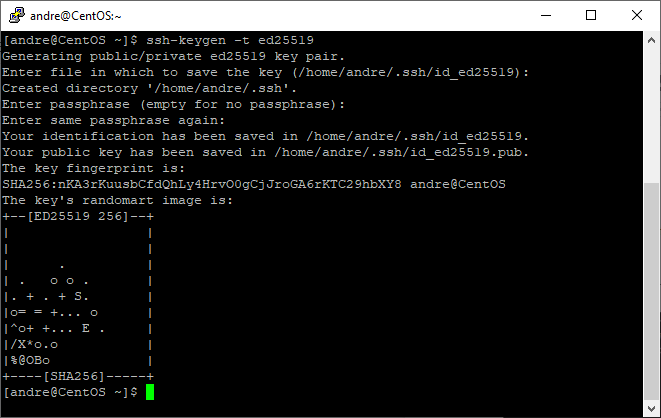
Private and public keys have now been generated and are stored in the location listed (~/.ssh/id_ed25519 and ~/.ssh/id_ed25519.pub).
Next step is to install the public key on the server:
ssh-copy-id andre@localhost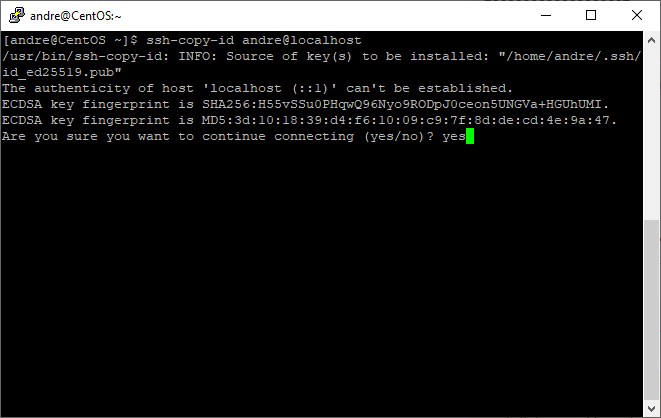
- Verify the fingerprint to make sure you are connecting to the intended server.
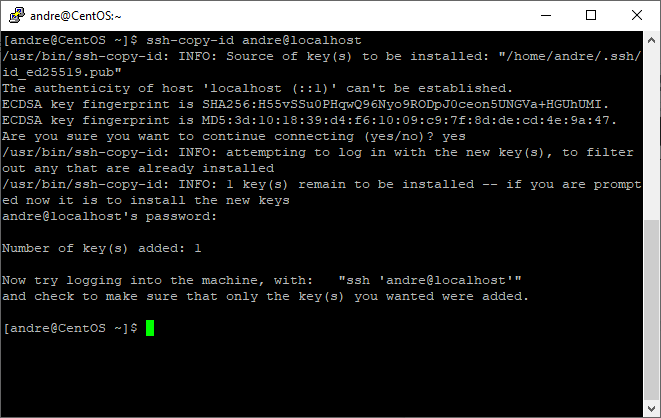
- Enter your password.
The public key has now been added to the server (~/.ssh/authorized_keys):
2026 Modernization & Best Practices
1. Why Ed25519 Remains the Gold Standard
Even in 2026, ed25519 is the recommended public-key algorithm for OpenSSH over legacy RSA keys:
- Compact & Fast: Public keys are only 68 characters long compared to 700+ characters for RSA-4096.
- Resilient by Design: Immune to side-channel timing attacks and weak random-number generator flaws that historically affected DSA and ECDSA.
When generating a standard key today, include -a 100 (100 KDF rounds for stronger passphrase protection) and -C for a descriptive comment:
ssh-keygen -t ed25519 -a 100 -C "andre@workstation-2026"2. Hardware-Backed Keys (ed25519-sk) with YubiKey / FIDO2
OpenSSH 8.2+ supports FIDO2 hardware security keys. The private key never leaves your YubiKey or security token, requiring a physical touch to authenticate:
# Generate a hardware-backed Ed25519 key
ssh-keygen -t ed25519-sk -O resident -O verify-required -C "andre-yubikey"
3. Lock Down sshd_config After Copying Your Key
Once you have verified that key-based login works, disable password authentication on your Linux server using a drop-in configuration file:
sudo tee /etc/ssh/sshd_config.d/99-hardening.conf << 'EOF'
PasswordAuthentication no
PermitRootLogin prohibit-password
KbdInteractiveAuthentication no
PubkeyAuthentication yes
EOF

sudo sshd -t && sudo systemctl reload sshd