How to Create a Hyper-V VM via PowerShell (with Modern Automated Provisioning)
Learn how to create and configure Generation 2 Hyper-V virtual machines, virtual hard disks, CPU, SecureBoot, and networking using Windows PowerShell.
Original Archive (January 2020) + 2026 AI Modernization: Preserves the original Hyper-V PowerShell commands and adds modern Secure Boot templates for Linux, TPM 2.0 enabling, and reusable provisioning functions.
Original Guide (January 2020): Creating a Hyper-V VM via PowerShell
To create a VM in Hyper-V (or any hypervisor for that matter) we need to define a few necessary virtualized hardware components. We need to define memory (RAM), CPU(s), and a boot device. For our purposes we will use a Virtual Hard Disk as our boot and storage device.
Let’s start!
Open an elevated Windows PowerShell prompt or PowerShell ISE (Run as Administrator):
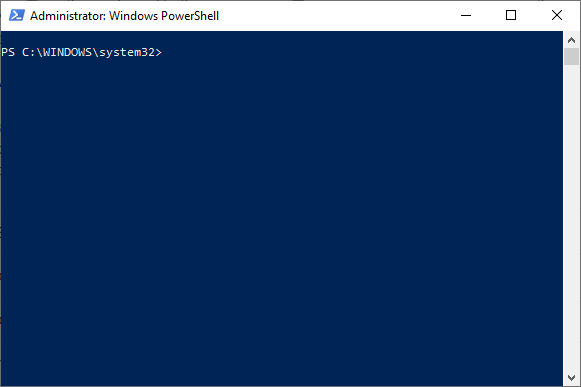 Elevated PowerShell prompt
Now, we are going to create a Virtual Hard Disk (VHD) using the following command (name of the VHD, storage path, and capacity are up to you):
New-VHD -Path "C:\VHD_TEST\VirtualHardDisk.vhdx" -SizeBytes 60GBLet’s define a VM… the following command creates a new Gen2 VM with 2GB of memory. In this example, I have given it a descriptive name of "Andre's CentOS VM":
New-VM -Name "Andre's CentOS VM" -Path "C:\VM" -MemoryStartupBytes 2048MB -Generation 2(Optional) Let’s adjust the number of processors to 2 (default: 1):
Set-VMProcessor -VMName "Andre's CentOS VM" -Count 2(Optional) Disable SecureBoot as we are planning on installing CentOS on this VM in the future:
Set-VMFirmware "Andre's CentOS VM" -EnableSecureBoot Off(Optional) We’re going to add a network adapter and attach it to a virtual switch:
Add-VMNetworkAdapter -VMName "Andre's CentOS VM" -SwitchName "Default Switch"(Optional) Let’s also add a virtual DVD drive for OS installation media:
Add-VMDvdDrive -VMName "Andre's CentOS VM" -Path "C:\ISO\CentOS-7-x86_64-Minimal-1908.iso"Alternatively, we could create a VM with a single command using the following:
New-VM -Name "Andre's CentOS VM" -MemoryStartupBytes 2048MB -BootDevice VHD -VHDPath "C:\VHD_TEST\VirtualHardDisk.vhdx" -Path "C:\VM" -Generation 2 -Switch "Default Switch"2026 Modernization & Best Practices
1. Keep Secure Boot Enabled on Linux VMs
Instead of disabling Secure Boot (-EnableSecureBoot Off), modern Linux distributions (Rocky Linux 9/10, AlmaLinux, Ubuntu 24.04+) work with Secure Boot enabled if you switch the template to MicrosoftUEFICertificateAuthority:
Set-VMFirmware -VMName "Andre's Linux VM" -EnableSecureBoot On -SecureBootTemplate "MicrosoftUEFICertificateAuthority"2. Enabling vTPM 2.0 (Required for Windows 11 & Server 2025 Security)
Modern Windows guests require a virtual Trusted Platform Module (vTPM). You can enable it in two lines of PowerShell:
Set-VMKeyProtector -VMName "Win11-Lab" -NewLocalKeyProtector
Enable-VMTPM -VMName "Win11-Lab"
3. Complete Reusable PowerShell 7 Provisioning Function
Here is a complete, idempotent script you can drop into your PowerShell profile to spin up Linux or Windows Gen 2 VMs in seconds:
function New-LabVM {
    param(
        [Parameter(Mandatory)][string]$Name,
        [int]$CPUCount = 4,
        [int64]$MemoryGB = 4,
        [int64]$DiskGB = 60,
        [string]$IsoPath,
        [string]$SwitchName = "Default Switch",
        [ValidateSet("Linux", "Windows")][string]$OSType = "Linux"
    )

    $vmRoot = "C:\HyperV\$Name"
    $vhdPath = "$vmRoot\$Name.vhdx"

    New-VHD -Path $vhdPath -SizeBytes ($DiskGB * 1GB) -Dynamic | Out-Null
    New-VM -Name $Name -Path "C:\HyperV" -MemoryStartupBytes ($MemoryGB * 1GB) -Generation 2 -VHDPath $vhdPath -SwitchName $SwitchName | Out-Null
    Set-VMProcessor -VMName $Name -Count $CPUCount
    Set-VMMemory -VMName $Name -DynamicMemoryEnabled $false

    if ($OSType -eq "Linux") {
        Set-VMFirmware -VMName $Name -EnableSecureBoot On -SecureBootTemplate "MicrosoftUEFICertificateAuthority"
    } else {
        Set-VMKeyProtector -VMName $Name -NewLocalKeyProtector
        Enable-VMTPM -VMName $Name
    }

    if ($IsoPath) {
        Add-VMDvdDrive -VMName $Name -Path $IsoPath
        $dvd = Get-VMDvdDrive -VMName $Name
        Set-VMFirmware -VMName $Name -FirstBootDevice $dvd
    }

    Write-Host "VM '$Name' provisioned successfully!" -ForegroundColor Cyan
}