Build a Domain Controller on Windows Server 2016 (with 2026 PowerShell & Server 2025 Guide)
Visual guide to promoting a Windows Server 2016 machine to an Active Directory Domain Controller, updated with automated PowerShell deployment for Windows Server 2022/2025.
Original Archive (April 2020) + 2026 AI Modernization: This guide preserves the original Server Manager GUI walkthrough for Windows Server 2016 and adds modern PowerShell automation and security best practices for Windows Server 2022 and 2025.
Original Guide (April 2020): Building a Domain Controller via GUI
1. Rename the PC – Assign desired controller name
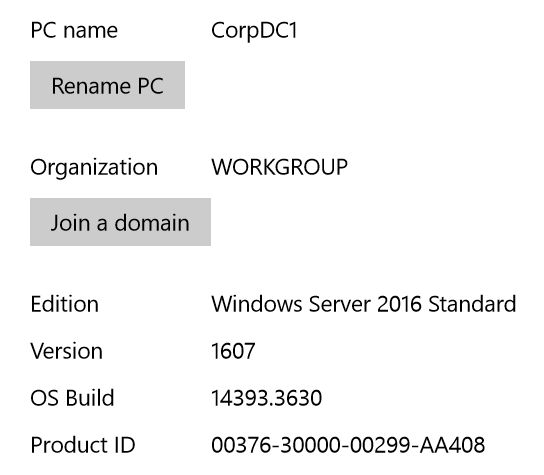 CorpDC1 is the name we are going to use in this example.
2. Set static IP, Gateway and DNS values
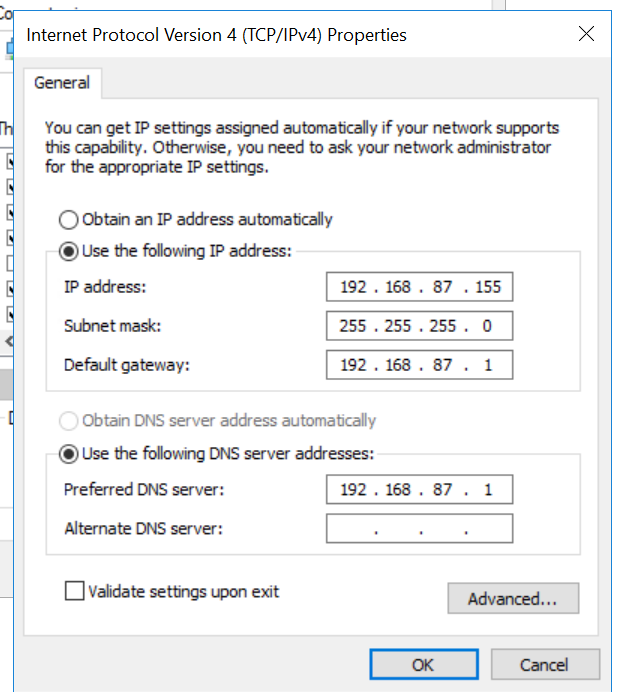 Example values shown above.
3. Install AD DS role via Server Manager
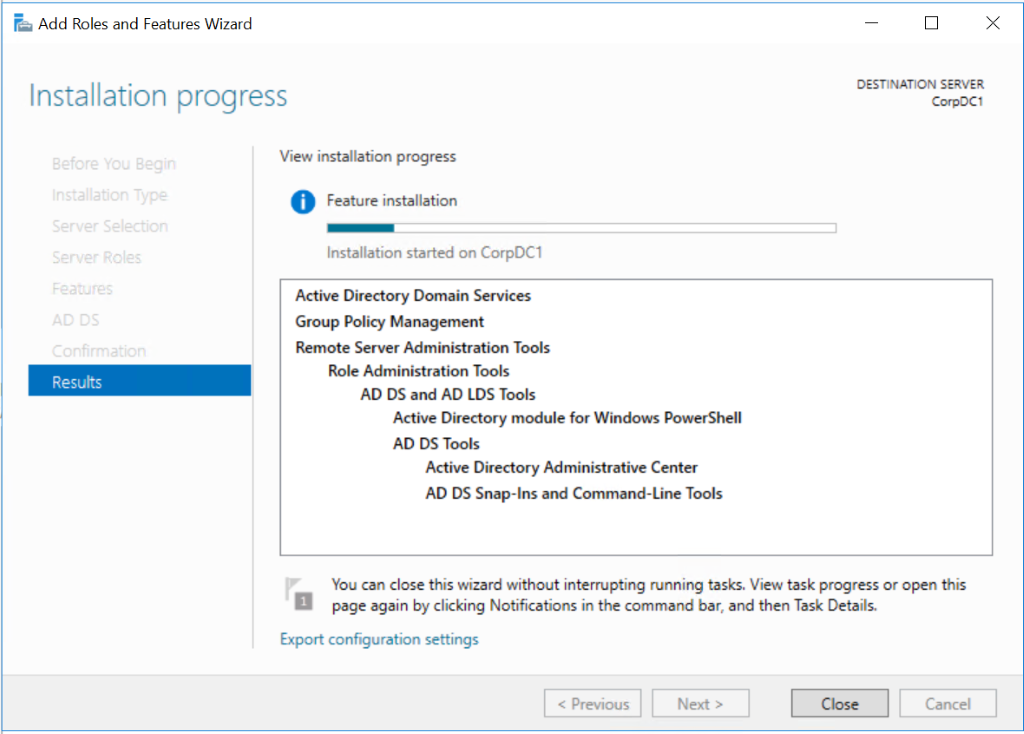
4. Create a new forest
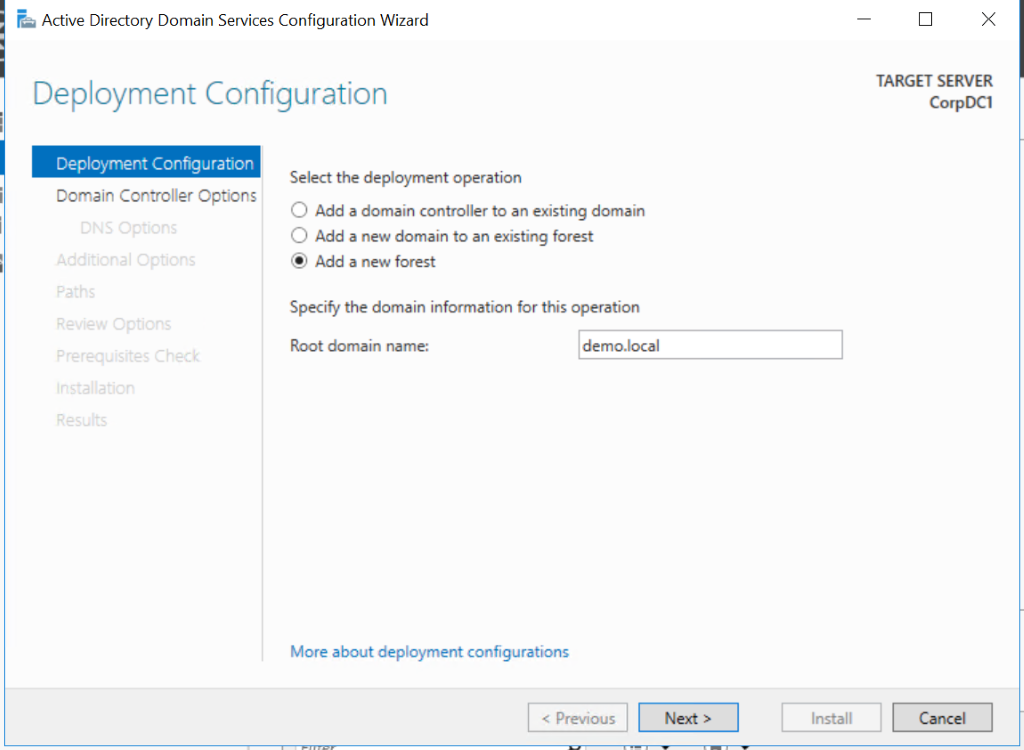 Root domain name:
 demo.local used in this example.
5. Set functional level of the new forest and root domain and set DSRM password
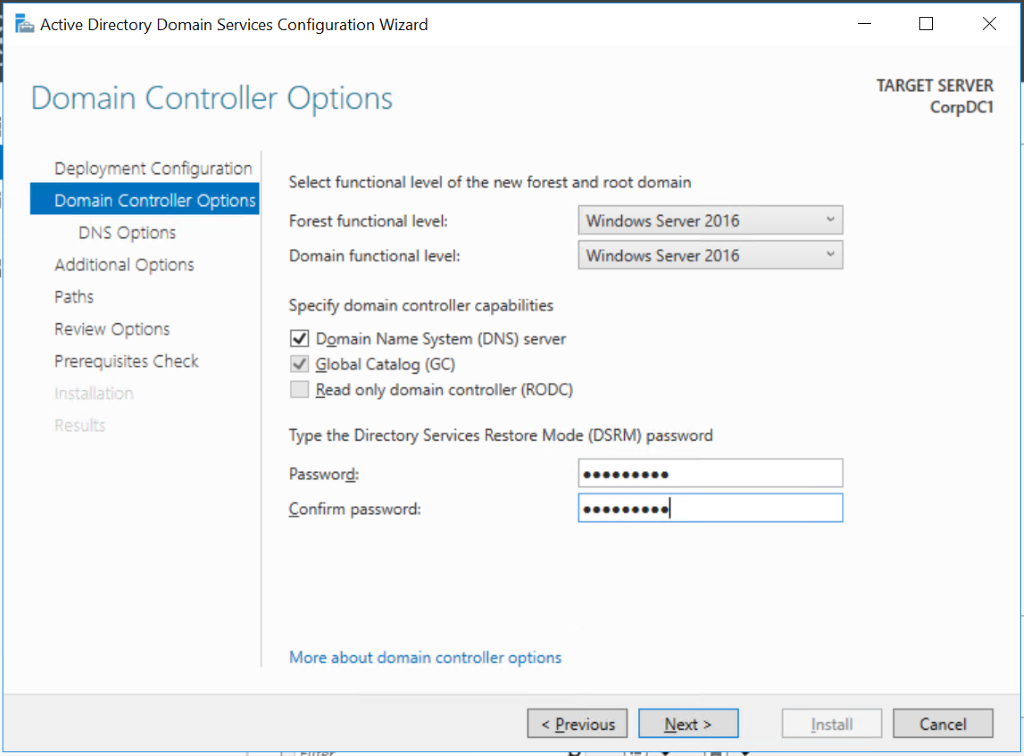 Default values used.
6. Default paths used for AD DS database, log files, and SYSVOL
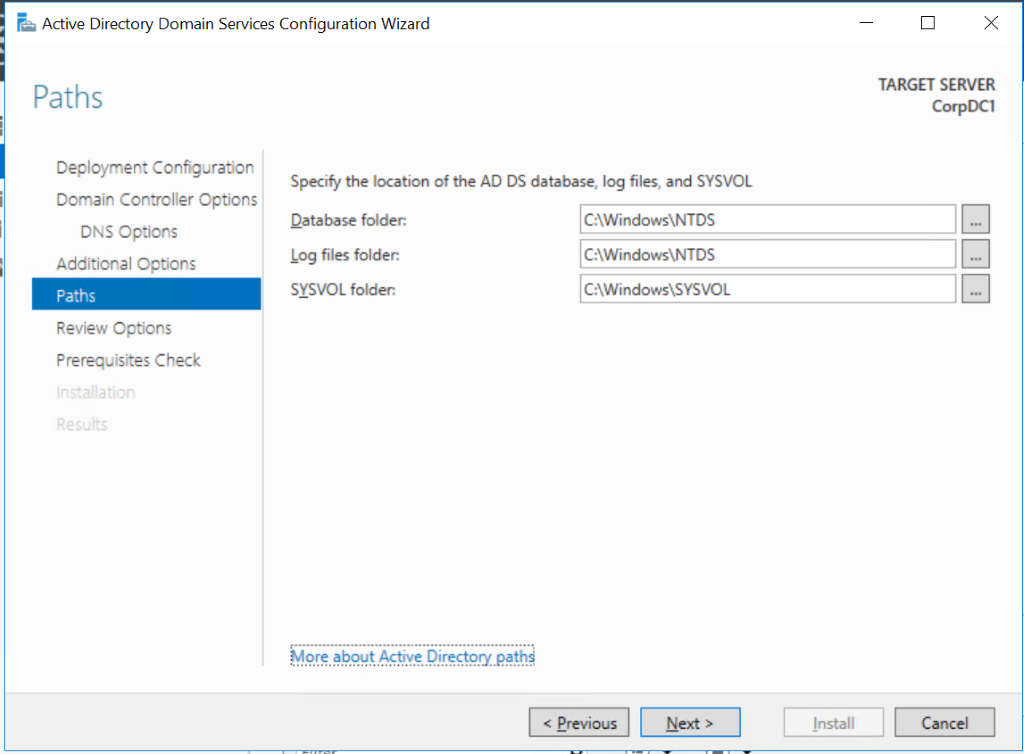
Hit Next a couple times and then the Install button – your domain controller will be up and running after the required reboot.
2026 Modernization & Best Practices
1. Unattended PowerShell Promotion (Server 2019 / 2022 / 2025)
Instead of clicking through Server Manager, you can configure the hostname, static IP, AD DS role installation, and forest promotion entirely in PowerShell:
# 1. Configure Static IP and DNS
New-NetIPAddress -InterfaceAlias "Ethernet" -IPAddress 192.168.1.10 -PrefixLength 24 -DefaultGateway 192.168.1.1
Set-DnsClientServerAddress -InterfaceAlias "Ethernet" -ServerAddresses 127.0.0.1, 1.1.1.1

# 2. Rename Computer (Reboot required before promotion)
Rename-Computer -NewName "CorpDC1" -Restart
After the server restarts, install and promote AD DS in one step:
# 3. Install AD DS Role & Management Tools
Install-WindowsFeature -Name AD-Domain-Services -IncludeManagementTools

# 4. Promote to Domain Controller in a New Forest
Import-Module ADDSDeployment
Install-ADDSForest `
    -DomainName "ad.andre.tech" `
    -DomainNetbiosName "ANDRETECH" `
    -InstallDns:$true `
    -Force:$true
2. Modern Active Directory Design & Security Tips
- Avoid
.localSingle-Label or mDNS TLD Collisions: Modern best practice recommends using a subdomain of a publicly registered domain you own (e.g.,ad.andre.techorcorp.andre.tech) instead of.local, which conflicts with Apple Bonjour / multicast DNS (mDNS) and cannot be used with public PKI certificates. - Windows Server 2025 AD Enhancements: Windows Server 2025 introduces the first new functional level since 2016 (Server 2025 Forest/Domain Functional Level), featuring a 32k database page size (up from 8k), TLS 1.3 LDAP encryption by default, and disabling legacy RC4 Kerberos encryption out of the box.
- Server Core Recommended: For production Domain Controllers, Microsoft recommends deploying Windows Server Core (headless) to minimize the attack surface and reduce monthly patch reboot overhead.