Automate Updates on Windows Server 2019 (Group Policy & Modern Cloud Patching)
How to automate Windows Updates and Defender definition updates on Windows Server 2019 using Local Group Policy, plus modern PowerShell and Azure Update Manager workflows.
Original Archive (February 2020) + 2026 AI Modernization: Preserves the original Group Policy Editor (
gpedit.msc) walkthrough and expands it withPSWindowsUpdate, registry automation, and Windows Server 2025 Hotpatching.
Original Guide (February 2020): Automating Updates via Group Policy
On a new installation of Windows Server 2019, updates have to manually be installed by default. This includes Definition updates to Windows Defender. We are going to automate this process to keep our server always up-to-date.
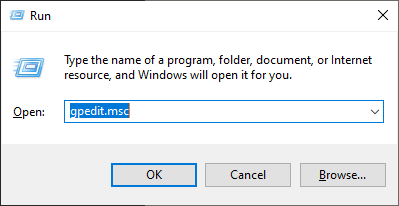
Let’s start by opening the Group Policy Editor. You can do this by entering gpedit.msc via the Run window:
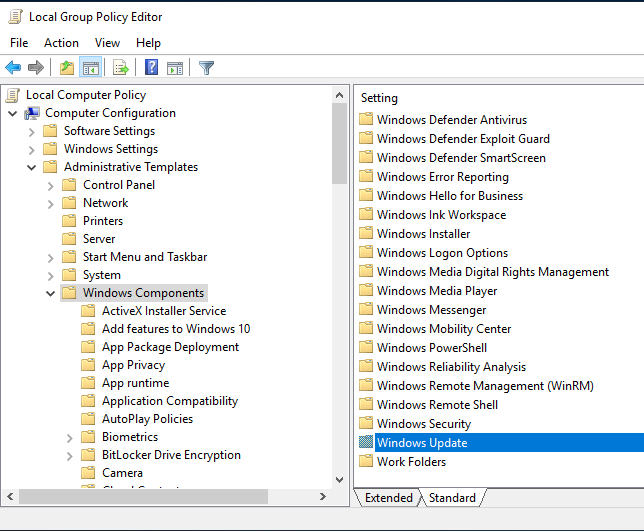
When the Local Group Policy Editor opens, navigate to the following: Local Computer Policy => Computer Configuration => Administrative Templates => Windows Components => Windows Update
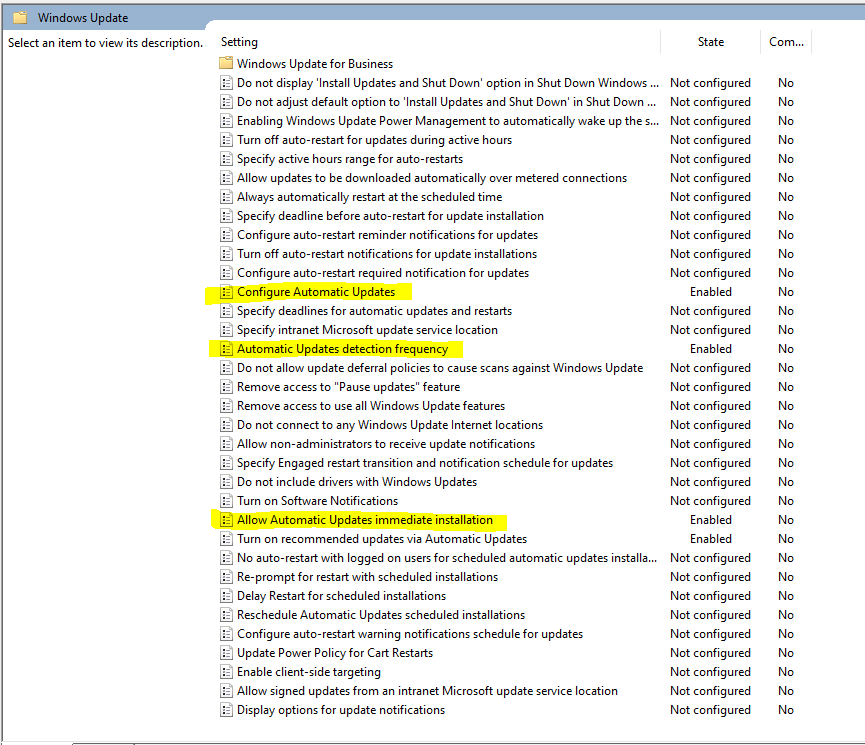
Under Windows Update – we are going to enable and configure the following policies:
Under the Configure Automatic Updates policy there are several options. Select option 4 – Auto download and schedule the install and check the Install during automatic maintenance checkbox. You can also specify days and times of the installs.
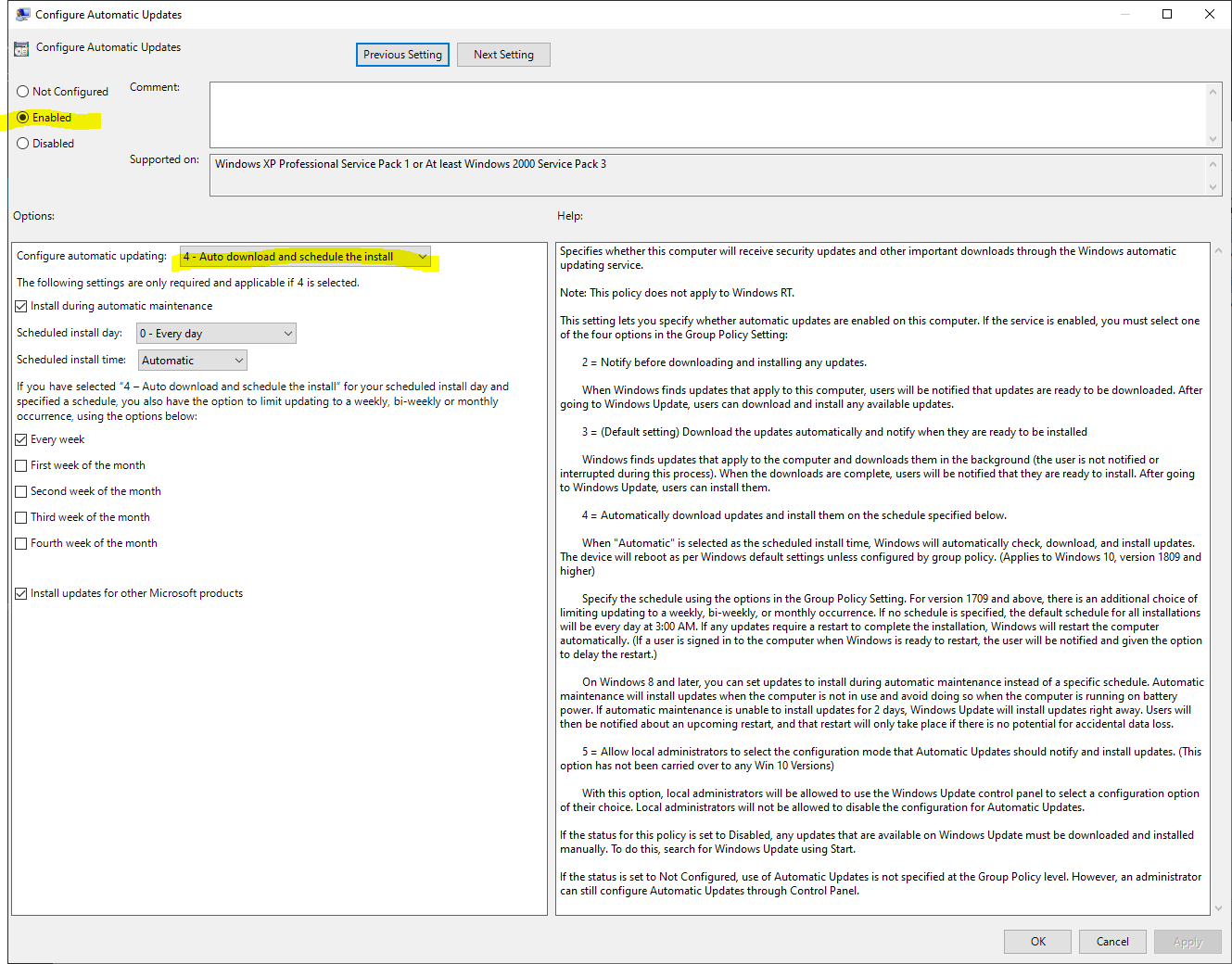 Configure Automatic Updates policy
The next policy we are going to enable and modify is the Automatic Updates Detection Frequency policy. This policy dictates how often the OS will check for updates.
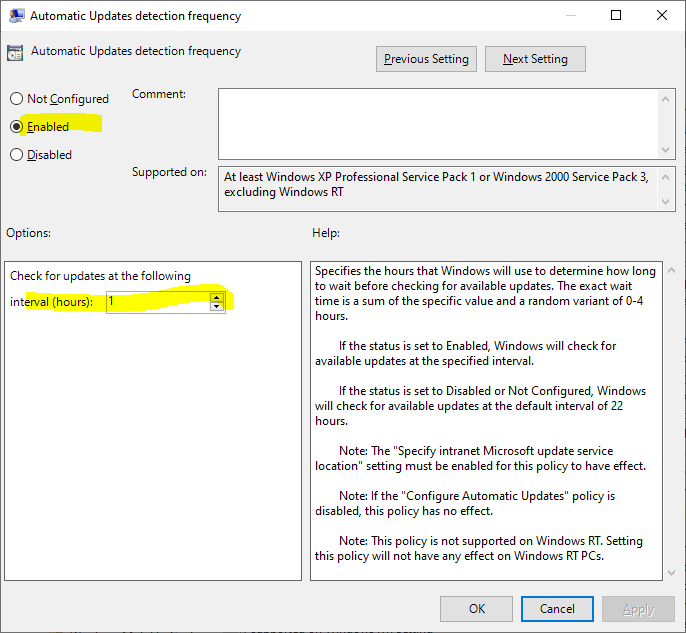 Automatic Updates Detection Policy
The final policy we are going to enable is the Allow Automatic Updates immediate installation policy. This will allow updates that won’t interrupt Windows services or require a restart to be installed immediately (e.g., Defender Definition updates).
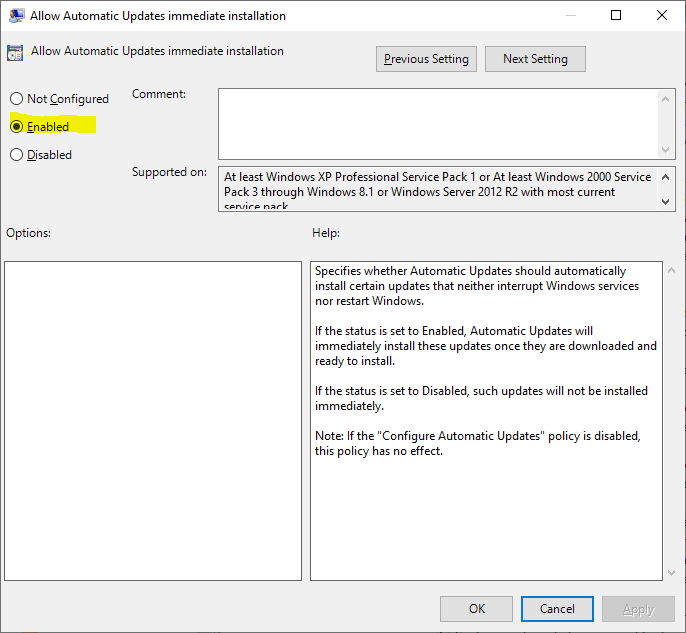 Allow Automatic Updates immediate installation
That’s it! Now your server will continuously check for updates at the frequency you specified and install the updates during the maintenance windows specified.
2026 Modernization & Best Practices
1. Apply the Exact Same GPO Settings via PowerShell
In Windows Server 2022 and 2025, Windows Update policies moved into subfolders (Manage end user experience and Legacy Policies). To apply the exact settings from the guide above across any server (including Server Core) without opening gpedit.msc, run this elevated PowerShell snippet:
$wuPath = "HKLM:\SOFTWARE\Policies\Microsoft\Windows\WindowsUpdate"
$auPath = "$wuPath\AU"

New-Item -Path $wuPath -Force | Out-Null
New-Item -Path $auPath -Force | Out-Null

# Option 4: Auto download and schedule the install
Set-ItemProperty -Path $auPath -Name "NoAutoUpdate" -Value 0 -Type DWord
Set-ItemProperty -Path $auPath -Name "AUOptions" -Value 4 -Type DWord
Set-ItemProperty -Path $auPath -Name "AutomaticMaintenanceEnabled" -Value 1 -Type DWord
Set-ItemProperty -Path $auPath -Name "ScheduledInstallDay" -Value 0 -Type DWord # Every day
Set-ItemProperty -Path $auPath -Name "ScheduledInstallTime" -Value 3 -Type DWord # 03:00 AM

# Detection frequency (every 4 hours) & immediate install for non-reboot updates
Set-ItemProperty -Path $auPath -Name "DetectionFrequencyEnabled" -Value 1 -Type DWord
Set-ItemProperty -Path $auPath -Name "DetectionFrequency" -Value 4 -Type DWord
Set-ItemProperty -Path $auPath -Name "AutoInstallMinorUpdates" -Value 1 -Type DWord

gpupdate /force
2. Scripted Patching with PSWindowsUpdate
For homelabs and script-driven maintenance windows, the community-standard PSWindowsUpdate module gives full CLI control:
Install-Module -Name PSWindowsUpdate -Force
Import-Module PSWindowsUpdate

# Install all available updates and reboot automatically if required
Install-WindowsUpdate -MicrosoftUpdate -AcceptAll -AutoReboot